.svg)
Building a local agent for email classification using n8n & distil labs
Your inbox is a mixture of useful and distracting. Some emails are urgent, some you can read later, and others you want to delete immediately. Labels can help making order from the chaos - but labelling all emails manually takes time too.
LLMs can help with automated email labeling, but most don't want to send their emails to an external provider.
With this local setup using n8n (open source) and a custom model built with distil labs, you don't need to sacrifice the privacy of your data for AI capabilities
How it Works
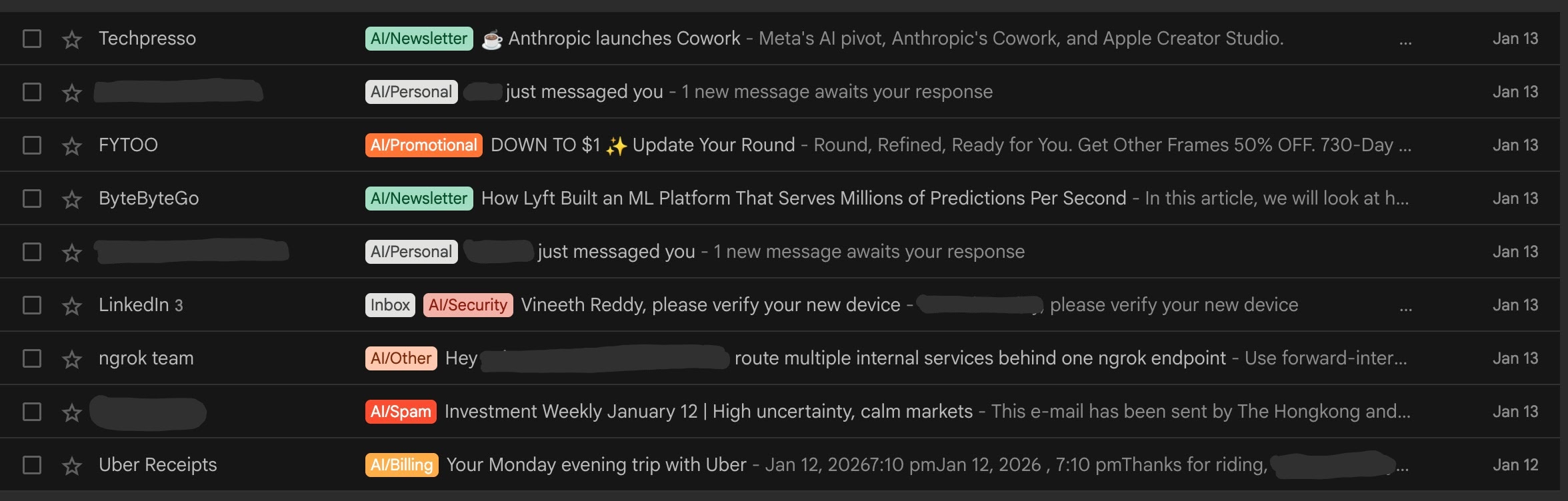
All new emails landing in the inbox should be assigned a label from a pre-defined list based on the subject line and email content. The entire pipeline should run locally.
Approch
We built a local email labeling pipeline in three steps:
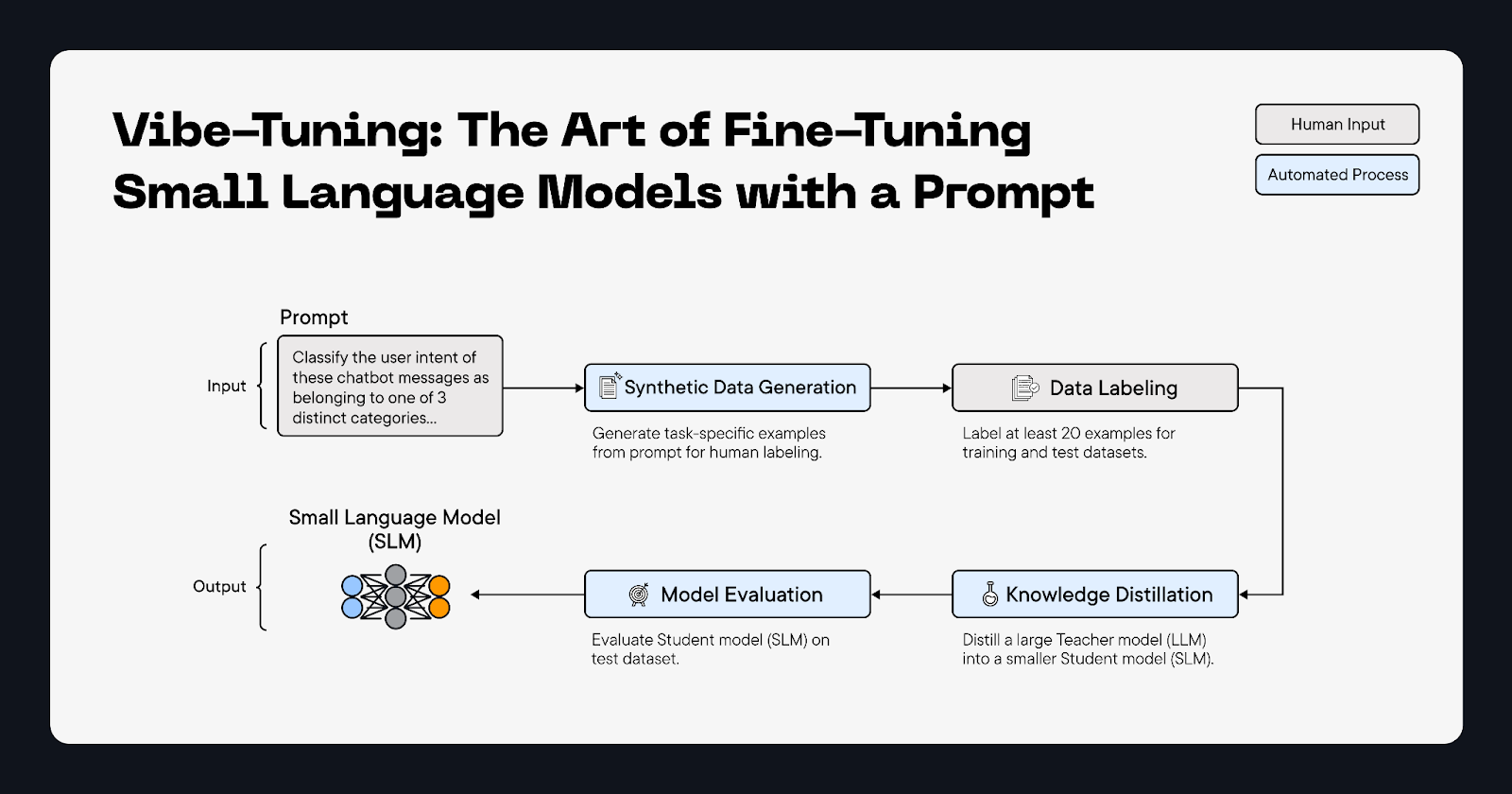
- Fine-tune a small model to classify emails into a fixed set of labels (work, billing, travel, and so on) using the distil labs platform
- Deploy the fine-tuned model locally using Ollama, so it's available at a localhost endpoint
- Connect an n8n workflow that watches Gmail, sends new emails to the local model, and applies the predicted label back in Gmail
Once it's running, new emails get labeled automatically.
Fine-tuning the model
Problem
Email labeling is a closed-set classification problem:
- Input: an email (subject + snippet or body)
- Output: exactly one label from a fixed list
Solution
1. Define the fixed set of labels (and their descriptions) that one would like to use:
- Billing
- Newsletter
- Work
- Personal
- Promotional
- Security
- Shipping
- Travel
- Spam
- Other
2. Create a seed dataset that can be used for training and evaluating the model (a few input/output pairs per label)
3. Select a student model that can be deployed locally
4. Run the knowledge distillation pipeline using the distil labs platform
Why fine-tuning is needed: a base model is general-purpose. It was not trained to map your inbox into your exact categories, and small base models often struggle with ambiguity:
- Confuses overlapping categories (Newsletter vs Promotional, Billing vs Shipping)
- Misses weak signals (short receipts, terse security alerts)
- Produces inconsistent outputs (extra text instead of a single label)
Recommendation (Gmail): Prefix your AI-generated labels. For example, AI/Work or AI/Travel. This keeps them clearly separated from Gmail's built-in categories like Promotions. It also avoids edge cases where Gmail's default labels and tabs don't behave like regular user-created labels.
Training details
Results
After distillation + fine-tuning, the model becomes reliable at picking one label from the exact label set, even when the email is short or ambiguous. The fine-tuned student matches the teacher on our labeling benchmark:
If your inbox follows different patterns, you can fine-tune a model on distil labs with your own labels and download it for local deployment
System Setup
Installation Steps:
1. Install n8n locally
# Install Node.js (if not installed)
brew install node

# Install n8n globally
npm install -g n8n

# Start n8n
n8n
Access n8n at: http://localhost:5678
2. Download the model
#install huggingface CLI if not instlalled
python3 -m pip install -U huggingface_hub

#download the model
hf download distil-labs/distil-email-classifier --local-dir ./distil-email-classifier
3. Run the model
#install Ollama or you can download from https://ollama.com/download
brew install ollama
#start Ollama
ollama serve
#navigate to your model folder
cd ./distil-email-classifier
#create model in ollama
ollama create email-classifier -f Modelfile
#verify the model is created or not
ollama list
#run the model
ollama run email-classifier "test"
#check the model is running or not
ollama ps
```
Expected output:
NAME ID SIZE PROCESSOR CONTEXT UNTIL
email-classifier:latest 695190b0f07f 3.5 GB 100% GPU 4096 4 minutes from now
```
#to keep model running forver run the below commands
OLLAMA_KEEP_ALIVE=-1 ollama run email-classifier "test"
#Now shows Forever instead of 4 minutes from now.
Once you finish the setup, open n8n in your browser (http://localhost:5678), sign up with your email.
4. Import n8n workflows
Download the workflow JSON files from our GitHub repository: https://github.com/distil-labs/distil-n8n-gmail-automation
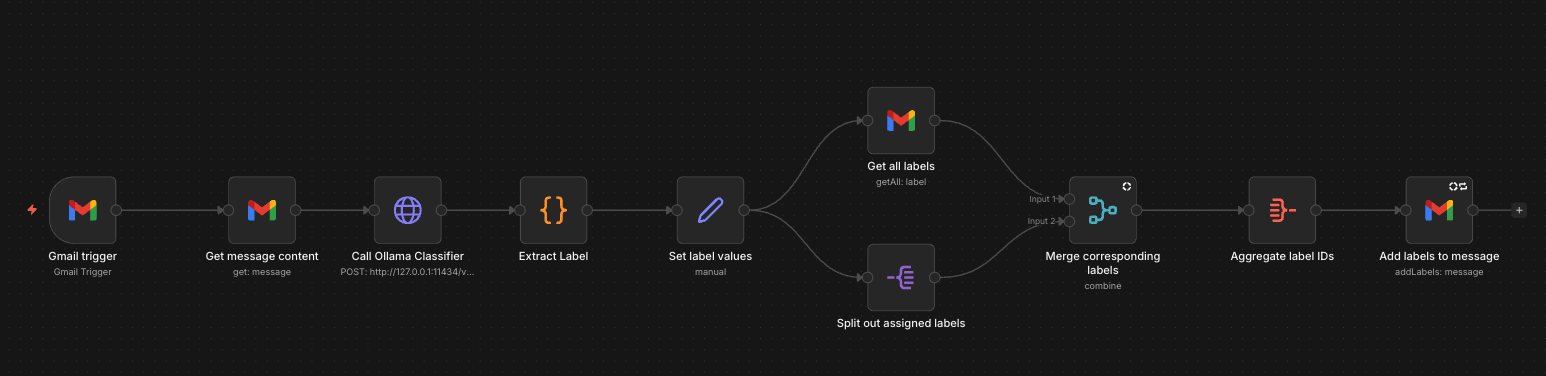
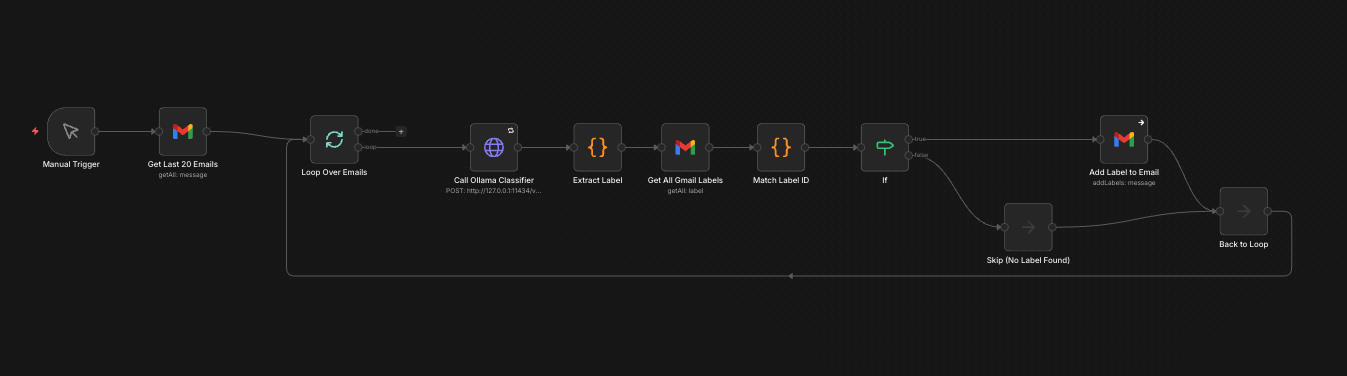
Two Workflows are available:
Real-time Classification: Triggers automatically on each incoming email
Batch Processing: Classifies multiple existing emails at once
5. Connect your Gmail
To connect your Gmail you need to setup Gmail OAuth (Google cloud console)
- Go to
console.cloud.google.comand create a project - APIs & Services → Library → Search "Gmail API" → Click Enable
- APIs & Services → OAuth consent screen → Select External → CreateFill in:
- App name:
n8n Email Classifier - User support email: Your email
- Developer contact: Your email
- App name:
- Click Add or Remove Scopes → Select
https://mail.google.com/→ Update → Save and Continue - Click Add Users → Enter your Gmail address → Add → Save and Continue
- APIs & Services → Credentials → + Create Credentials → OAuth client ID
- Application type: Web application
- Name:
n8n Gmail - Redirect URI:
http://localhost:5678/rest/oauth2-credential/callback
- Click Create → Copy Client ID and Client Secret
6. Configure n8n HTTP Node
Wrapping up
Before running the workflow, create all 10 labels manually in your Gmail account. Use the "AI/" prefix to match the model output (AI/Billing, AI/Work, AI/Travel, and so on).
Once you have created all the labels, run the workflow.
If everything is working, the test emails will show up in Gmail with the new AI/... labels applied within a few seconds.
Conclusion
Once this is running, your inbox stays organized without sending email content to a cloud LLM. New messages get labeled automatically.If you want different labels, you can distill a custom version of this classifier on the distil labs platform. When you sign up, you get two free training credits to train the model.
Resources
- Workflow JSON files: https://github.com/distil-labs/distil-n8n-gmail-automation
- Models: https://huggingface.co/distil-labs/distil-email-classifier
.svg)
.png)
.png)